In Part 2 of this series, we explored how to expand our local Docker development environment to include emulated Azure Storage, allowing us to develop and test Durable Functions.
In this post, we will take that idea a step further by integrating our very own localised Large Language Model into the same development environment we made previously.
Instead of forking out for API access to a hosted AI service, we will take a look at tools like Ollama and how they allow us to run an LLM directly on our own machine, packaged neatly within our Docker environment.
On the surface, this might sound like a bit of a novelty. After all, hosted LLM APIs are easy to use, well documented, and usually only a few lines of code (or one prompt) away. But running models locally opens up some interesting possibilities, especially when we think about privacy, repeatability, offline development, and building AI-powered features without sending every prompt and response to a third-party service.
By the end of this post, we will have a local containerised setup running an LLM, and we will explore how we can integrate it with our Durable Function.
Containing the AI
As mentioned before, the primary tool we are using to host our LLM is Ollama, an open-source tool that allows us to run LLMs locally on our machine. It essentially acts as a package manager for LLM models, allowing us to pull them down to the container and then access them via an integrated API. It is a fantastic tool, and I encourage you to poke about and explore all of the AI Models that make up their library.
The model we are using for this post will be Llama 3.2, which is one of a series of open-source AI models developed by Meta.
Ollama can be installed on many platforms, but of course, for this post, we will use the Ollama Docker Image.
To add Ollama to our dev stack, we can edit the docker-compose.yaml file we made back in Part 2 to look like the one shown below:
services:
    dev-container:
        image: my-dev-img
        container_name: example-dev-container
        environment:
            OLLAMA_BASE_URL: http://dev-ollama:11434
            OLLAMA_MODEL: llama3.2
        volumes:
            - .:/development
        networks:
            - devnet
        tty: true
        stdin_open: true

    dev-azurite:
        image: mcr.microsoft.com/azure-storage/azurite
        container_name: dev-azurite
        ports:
            - "10000:10000"
            - "10001:10001"
            - "10002:10002"
        command: azurite --blobHost 0.0.0.0 --queueHost 0.0.0.0 --tableHost 0.0.0.0
        networks:
            - devnet

    dev-ollama:
        image: ollama/ollama:latest
        container_name: dev-ollama
        environment:
            OLLAMA_MODEL: llama3.2
        entrypoint: ["/bin/sh", "-c"]
        command:
            - |
                ollama serve &
                until ollama list >/dev/null 2>&1; do sleep 1; done
                ollama pull "$${OLLAMA_MODEL}"
                wait
        ports:
            - "11434:11434"
        volumes:
            - ollama-data:/root/.ollama
        networks:
            - devnet

networks:
    devnet:
        driver: bridge

volumes:
    ollama-data:
The key changes are covered below:
-
Updated our
dev-containerwith a couple of environment variables that the code we write later can access. -
Added a new container called
dev-ollama, which has the following configuration:- An environment variable to set the model we are using.
- An entry point and command to pull the model down to the Ollama container so that it’s ready to use.
- Exposes port 11434 to allow access to the API/debugging.
- Mounts a local volume to the host.
- Attaches to the Docker network used by the other containers.
Once your docker-compose.yaml has been updated to the above, we can update our Docker stack using the following command:
docker compose -p azure-dev-stack up -dAI Integration
Now that we have our LLM running, we need to write some code to leverage it.
Below is an updated version of the function_app.py file that was made in the previous post.
This time, instead of just checking if a URL is accessible, it also extracts the HTML from a successful request and passes it to the LLM container with a prompt to create a quick description of the page.
import os
from html.parser import HTMLParser

import azure.functions as func
import azure.durable_functions as df
import requests

OLLAMA_BASE_URL = os.getenv("OLLAMA_BASE_URL", "http://dev-ollama:11434").rstrip("/")
OLLAMA_MODEL = os.getenv("OLLAMA_MODEL", "llama3.2")
MAX_PAGE_TEXT_CHARS = 12000
MAX_DESCRIPTION_WORDS = 200

myApp = df.DFApp(http_auth_level=func.AuthLevel.ANONYMOUS)


class PageTextParser(HTMLParser):
    def __init__(self):
        super().__init__()
        self._skip_depth = 0
        self._text = []

    def handle_starttag(self, tag, attrs):
        if tag in {"script", "style", "noscript", "svg"}:
            self._skip_depth += 1

    def handle_endtag(self, tag):
        if tag in {"script", "style", "noscript", "svg"} and self._skip_depth:
            self._skip_depth -= 1

    def handle_data(self, data):
        if self._skip_depth:
            return

        text = " ".join(data.split())
        if text:
            self._text.append(text)

    def get_text(self):
        return " ".join(self._text)


def extract_page_text(content: str) -> str:
    parser = PageTextParser()
    parser.feed(content)
    return parser.get_text()[:MAX_PAGE_TEXT_CHARS]


def limit_words(text: str, max_words: int) -> str:
    words = text.split()
    if len(words) <= max_words:
        return text

    return " ".join(words[:max_words])


def describe_page_with_ollama(page_text: str):
    if not page_text:
        return None, "No readable page text was found."

    prompt = (
        f'''Return a concise description of the observed web page in no more than
        200 words. Describe what the page appears to be about, its purpose,
        and any notable visible content. Use only the supplied page text.

        Page text:
        {page_text}'''
    )

    try:
        response = requests.post(
            f"{OLLAMA_BASE_URL}/api/generate",
            json={
                "model": OLLAMA_MODEL,
                "prompt": prompt,
                "stream": False,
                "options": {
                    "num_predict": 260
                }
            },
            timeout=60
        )
        response.raise_for_status()
        description = limit_words(
            (response.json().get("response") or "").strip(),
            MAX_DESCRIPTION_WORDS
        )
        if not description:
            return None, "Ollama returned an empty description."

        return description, None
    except (requests.RequestException, ValueError) as exc:
        return None, f"Ollama request failed: {exc}"

# HTTP-triggered starter for the durable orchestrator.
# Expects a JSON body like: { "urls": ["https://example.com", "https://contoso.com"\] }
@myApp.route(route="orchestrators/{functionName}")
@myApp.durable_client_input(client_name="client")
async def http_start(req: func.HttpRequest, client):
    function_name = req.route_params.get('functionName')
    try:
        body = req.get_json()
    except ValueError:
        body = {}

    urls = body.get("urls") or []
    if not isinstance(urls, list):
        urls = []

    instance_id = await client.start_new(function_name, client_input={"urls": urls})
    response = client.create_check_status_response(req, instance_id)
    return response

# Orchestrator that iterates through a list of URLs and delegates reachability checks to an activity.
@myApp.orchestration_trigger(context_name="context")
def check_urls_orchestrator(context):
    input_data = context.get_input() or {}
    urls = input_data.get("urls") or []
    results = []

    for url in urls:
        result = yield context.call_activity("check_url", url)
        results.append(result)

    return results

# Activity that checks whether the URL is reachable and asks Ollama to summarize reachable pages.
@myApp.activity_trigger(input_name="url")
def check_url(url: str):
    try:
        response = requests.get(url, timeout=10)
        reachable = response.status_code < 400
        status = "available" if reachable else "not available"
        result = {
            "url": url,
            "available": reachable,
            "status": status,
            "status_code": response.status_code
        }

        if reachable:
            page_text = extract_page_text(response.text)
            description, error = describe_page_with_ollama(page_text)
            result["description"] = description
            if error:
                result["description_error"] = error

        return result
    except requests.RequestException:
        return {"url": url, "available": False, "status": "not available"}
If you need any guidance accessing our custom Docker Development container or setting up the Durable Function, simply follow the ‘Bringing it Together’ section in the previous blog post, Part 2.
Testing and Extra Credit
Now that your Docker stack is up and running and your Durable Function has been updated, it’s time to test your new creation.
Simply start the Function within the Development Container, and trigger it in the same way it was triggered in Part 2 (don’t forget the payload!).
Extract the result URL and check what happened. It should resemble what is shown below.
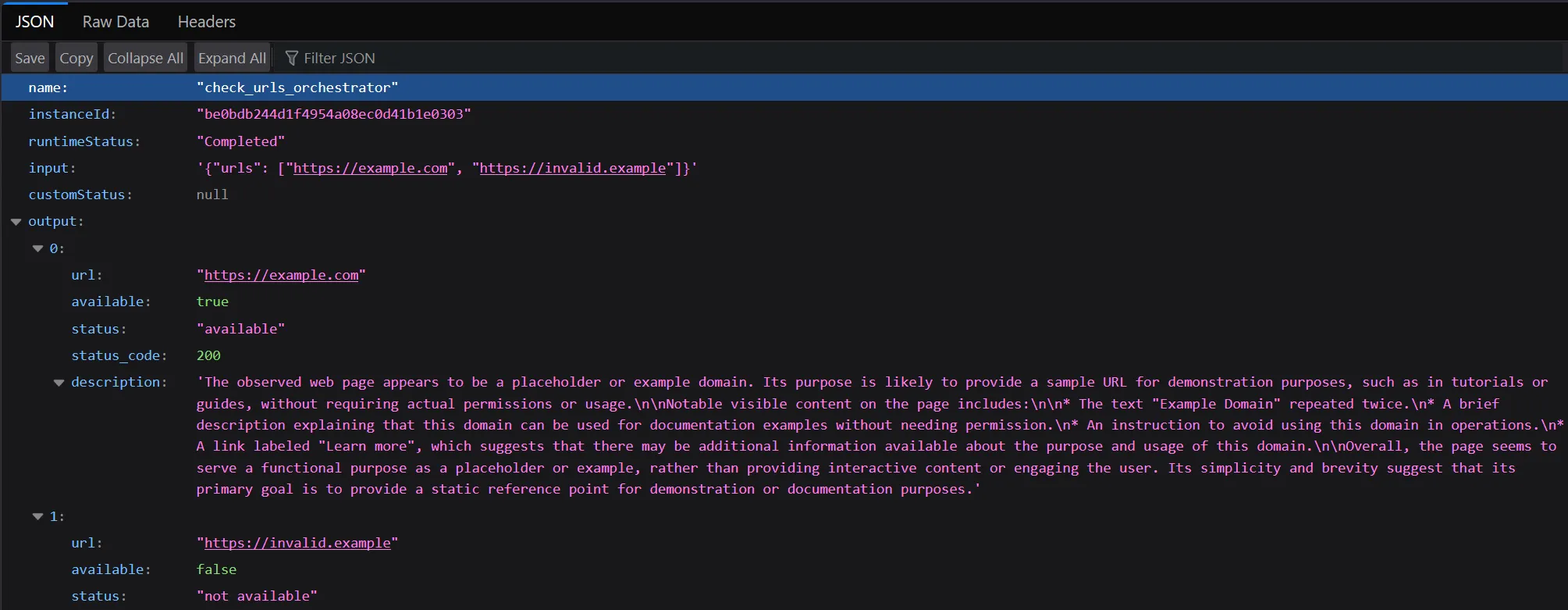
Run it again and check if there is much variation in the description. Remember, LLMs can be unpredictable and aren’t always consistent!
As per usual, if you want the files used in this project for your reference, you can find them here on my GitHub
🗒️ Note: When you trigger your Function, it might take a few seconds for you to get a response. LLMs are resource-intensive and, depending on the device running the container, may take a while to produce a result. This implementation is bound to the CPU of the host.
Extra Credit
If you are struggling to get a result in a timely fashion, or just want to start pushing your local LLM to the limit, you can always integrate your GPU with the Ollama container.
For details on how to do this, please reference the Ollama Docker Hub.